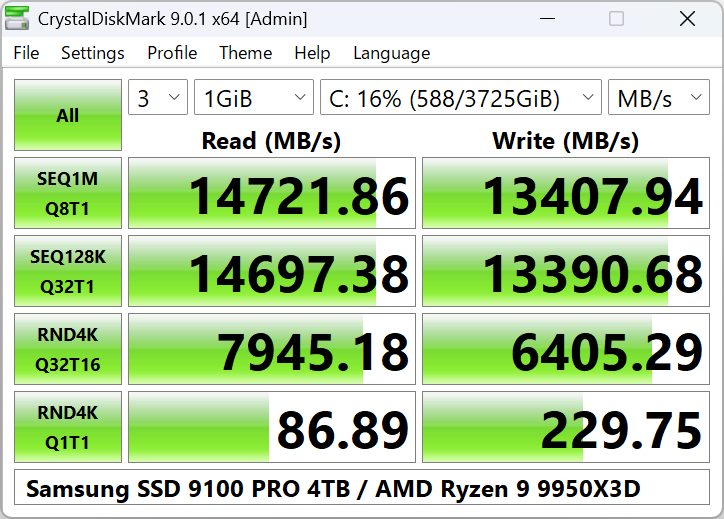
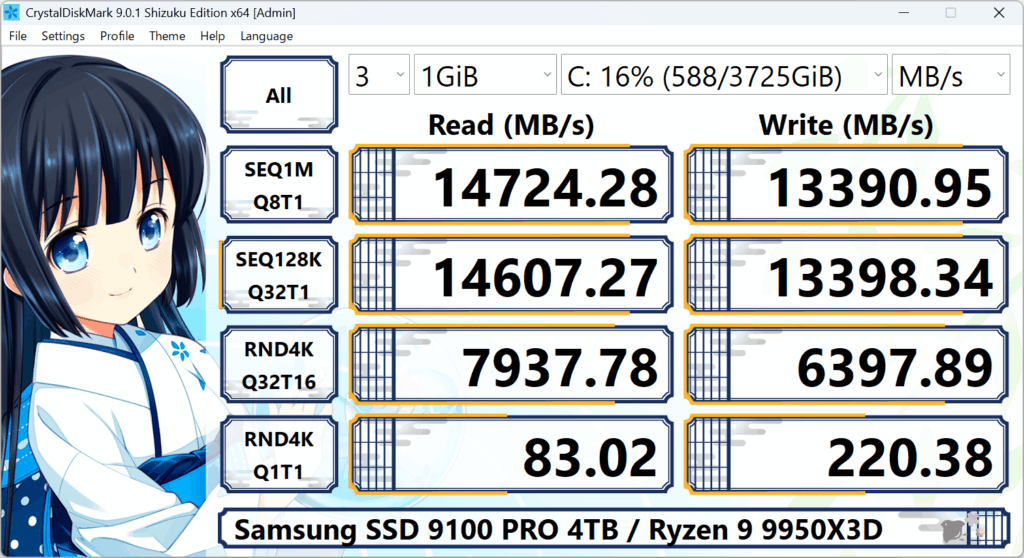
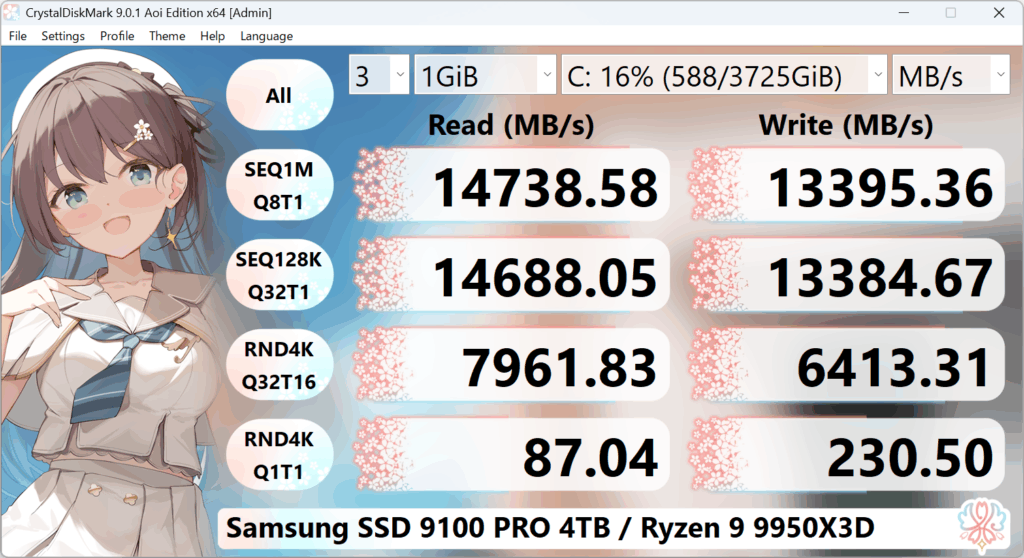
You pick a drive and a test size, click All, and wait. The program writes and reads data on the drive and shows you the speed (e.g. MB/s). Higher numbers mean faster storage. Use the same settings when comparing two drives.
CrystalDiskMark is a free, widely used disk benchmark tool for Windows. It measures how fast your storage device can read and write data by running standardized tests. You get results in MB/s (megabytes per second), GB/s, IOPS (operations per second), or latency (μs), so you can compare drives, check performance after an upgrade, or troubleshoot slow storage.
The program uses a test file on the drive you select: it writes and reads data in different patterns (sequential and random) and reports the speed. No installation is required if you use the ZIP version—just extract and run. CrystalDiskMark is developed by Crystal Dew World and has been a go-to benchmark for PC enthusiasts and professionals for years.
At a glance: Choose your drive and test size, click All, and wait for the results. Run as administrator for local drives; run without admin to see and test network drives. For a full walkthrough, see the step-by-step guide.
Download
Choose Standard, Shizuku, or Aoi edition—same engine, different look.
Use 1 GiB for SSDs; 100 MiB or less for slow or nearly full drives.
Tip
Run as admin for local drives. Run without admin to see network drives.
Tip
Pick the same test size and profile when comparing two drives.
Tip
Don’t run benchmarks constantly—they write a lot and can wear SSDs.
Why Benchmark Your Drive?
After an upgrade: Confirm that your new SSD or NVMe is performing as expected and that the connection (e.g. SATA vs NVMe, correct slot) is correct.
Before selling or reusing: Run a quick test to document the drive’s current performance for the next user or for your records.
Troubleshooting: If Windows or apps feel slow, a benchmark can show whether the disk is the bottleneck compared to typical speeds for that type of drive.
Comparing drives: Use the same test settings (e.g. 1 GiB, same profile) to compare different drives or the same drive before and after a driver or firmware update.
USB and external storage: Check real-world speed of flash drives, external SSDs, or network drives (run without administrator rights for network drives).
Key Features
📊
Sequential & Random
Measure both sequential and random read/write performance (MB/s, GB/s, IOPS, latency).
🎨
Themes & Languages
Multiple themes (Dark, Flower, etc.) and many languages supported.
⚙️
Measure Modes
Peak, Real World, and Demo profiles. Configurable test size and runs.
💾
All Storage Types
SSDs, NVMe, HDDs, USB drives, and network drives (run without admin).
What Can Affect Results?
Benchmark numbers can vary slightly between runs. Common factors:
• Background apps using the disk
• Thermal throttling (drive or CPU heating up)
• Test file position on the drive
• Driver version (especially for NVMe)
• Different test size or profile
• Antivirus or Windows indexing
For fair comparison, use the same settings and close heavy programs.
Result Units
CrystalDiskMark can show speed in several units. Choose from the menu.
MB/s — Megabytes per second (default; good for most drives)
GB/s — Gigabytes per second (for very fast NVMe)
IOPS — Input/output operations per second
μs — Microseconds latency (lower is better)
Who Is CrystalDiskMark For?
PC builders & upgraders
Verify that a new SSD or NVMe is running at full speed and correctly installed (e.g. Gen4 slot, correct driver).
Gamers
Check load times and storage performance. Compare SATA vs NVMe or different drives for game installs.
IT & support
Quick, repeatable tests for troubleshooting slow PCs or validating hardware before/after changes.
Reviewers & enthusiasts
Standardized benchmark for reviews and forum comparisons. Results are comparable when using the same version and settings.
Test Types at a Glance
📁
SEQ (Sequential)
Big files in order. Good for copy speed and large transfers.
🔀
RND 4K (Random)
Small random reads/writes. Reflects OS and app speed.
📊
Q32T1 / Q32T16
Queue depth and threads. Matters for NVMe performance.
What Does CrystalDiskMark Measure?
CrystalDiskMark runs several test patterns and reports speed in the unit you choose (MB/s, GB/s, IOPS, or average latency).
Sequential read/write (SEQ): Large blocks in order. Reflects speed when copying big files (movies, installers, backups). Default block size is 1 MiB.
Random read/write (RND 4K): Small 4 KiB blocks in random order. Simulates OS and app workload (many small I/Os). Important for boot time and application responsiveness.
Queue depth & threads: Tests like “Q32T1” or “Q32T16” use multiple pending I/Os and threads. NVMe drives often benefit from higher queue/thread counts; use the built-in NVMe SSD profile for NVMe drives.
Download & run. Get the Standard, Shizuku, or Aoi edition (ZIP or installer). For best compatibility with local drives, run as administrator.
Select drive and size. Pick the drive you want to test (e.g. C: or D:) and a test size (default 1 GiB is fine for most SSDs; use smaller for slow or nearly full drives).
Click All. The “All” button runs the full set of tests. Wait for them to finish; results appear in the grid. You can copy or save the result (File menu).
Copy: Use the Copy option in the menu to paste results into a forum, ticket, or document.
Save as image: Some editions let you save the result grid as an image for reports or comparisons.
Compare: Run the same test (same size, profile, version) on another drive and compare the numbers side by side.
Frequently Asked
Why can’t I see my network drive? Run CrystalDiskMark without administrator rights. With admin rights, mapped network drives are often hidden.
Why do my results change between runs? Background apps, thermal throttling, and test file position can cause small variations. Use the same settings for fair comparison.
Is it safe for my SSD? Yes for occasional use. Benchmarks write a lot of data, so avoid running them constantly.
Local drives: For reliable results on internal SSDs/HDDs, run CrystalDiskMark as administrator (right-click → Run as administrator).
Network drives: To see and test mapped network drives, run without administrator rights (when UAC prompts, choose No).
SSD / USB wear: Benchmarking writes a lot of data and can shorten the life of SSDs and USB flash drives. Use occasionally; avoid running constantly.
Comparing results: Only compare runs from the same major version (e.g. 9.x) and similar settings (test size, profile).
System Requirements
OS: Windows XP / Vista / 7 / 8 / 8.1 / 10 / 11, Windows Server 2003–2025
Architecture: x86, x64, ARM64
Installer and x64 version do not support Windows XP/2003. Not supported: Windows 95/98/Me/NT4/2000. Current stable version is 9.0.2 (February 2026).
Languages & Themes
CrystalDiskMark supports many languages (select from the menu). The Shizuku and Aoi editions offer different visual themes (e.g. Shizuku, Sakura, Flower, Aoi) while keeping the same benchmark engine and results.
CrystalDiskMark has been used for over a decade by hardware reviewers and PC builders to compare SSDs and HDDs. Results are widely cited in reviews and forums.
The ZIP version is portable: no installation needed. Extract to a folder and run—ideal for testing from a USB stick or when you don’t want to install software.
You can save or copy results from the File menu to share with support, document a drive before sale, or compare before/after driver updates.
Related Software
From the same developer (Crystal Dew World), CrystalDiskInfo monitors drive health (S.M.A.R.T. data), temperature, and usage. Use CrystalDiskMark for speed tests and CrystalDiskInfo to check whether a drive is healthy and how it’s performing over time. Both are free and support SSDs, HDDs, and NVMe.